Dismissal Request
Service portal users with required roles can submit a dismissal request for themselves in accordance with the dismissal request template of the company, or they can terminate an employment contract with a subordinate employee. The request will be processed by the company's HR department. In their portal cabinet, the users can monitor the processing of their request and communicate with the employee assigned to it.
Roles required:
Create and read:
- voluntary termination request – all users with access to the HR category in the Service Catalog;
- involuntary termination request – direct managers or their delegates.
Agent interface users with special HRM roles can process dismissal requests. Read more in the Agent Interface – Dismissal Request article.
Create a request
To create a dismissal request, complete the following steps:
- Go to Portal main page → Service catalog → HR.
- Click Resign or terminate an employee and fill in the form fields.
- (optional) In case you create a dismissal request for yourself, attach your dismissal request. You can download the completed template used in your company by clicking Download application.
- Click Send.
When the form is saved, the system redirects you to the confirmation page:
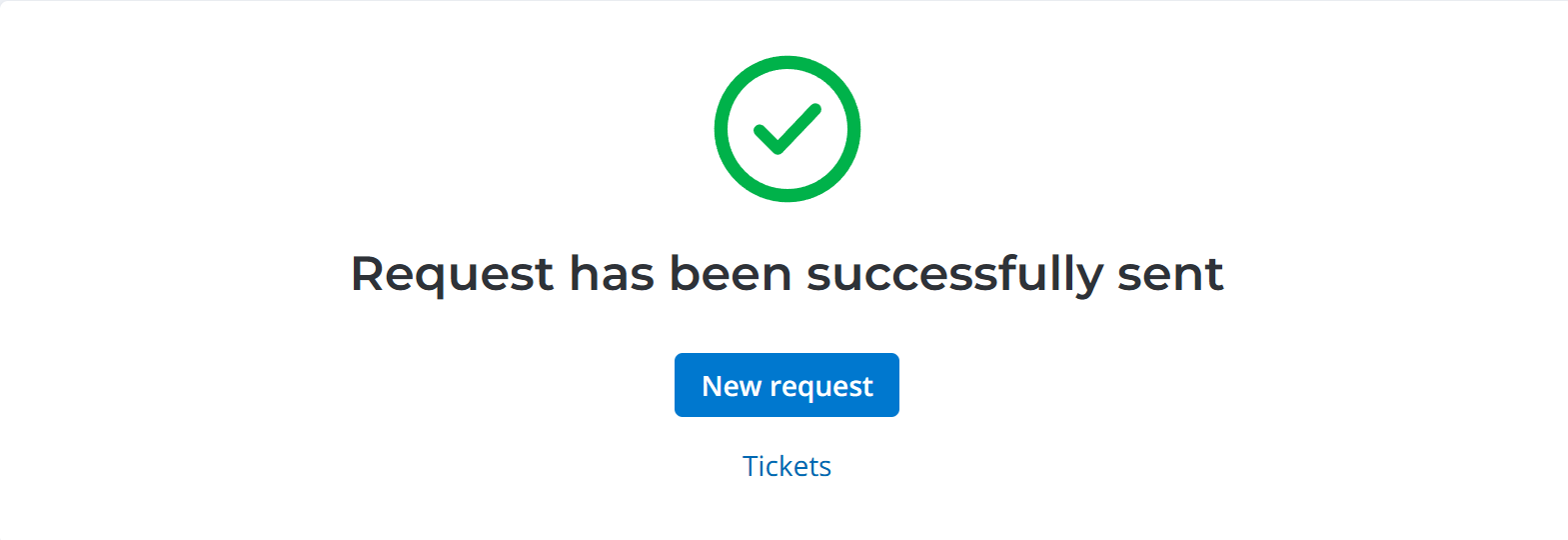
From this page, you can create another request. To do so, click New request.
To open your service request list, click Tickets.
Resign or terminate an employee form fields
| Field | Mandatory | Description |
|---|---|---|
| Employee | Y | Specify yourself or a subordinate employee that needs to be dismissed. |
| Dismissal date | Y | Specify the date of the final work day for the employee. |
| Application template | N | The field is completed automatically with the link to the corporate dismissal request template after the completion of the Employee and Dismissal date fields. |
| Description | N | Specify additional information. |
| Task list | N | Select the checkboxes next to the tasks that need to be completed to fulfill your request. |
Use the attachment window to upload files related to the record. To add your files, drag and drop them into the attachment window or click Upload from computer and add files via the file manager.
Tickets
You can find the list of all your requests on the Tickets page. Visit the page any time to monitor the state of all your requests. To do this, go to Activities → Tickets in the header of the portal.