Subordinate's Employment Contract Amendment Request
Service portal users who are direct and indirect managers can request amending their subordinate's employment contract. The request must be approved before the HR department can start processing it. In their portal Activities, the caller can monitor the processing of their request and communicate with the employee assigned to it.
Role required:
- Create and read – employee's direct and indirect managers.
Agent interface users with special HRM roles can process subordinate's employment contract amendment requests. Read more in the Agent Interface – Subordinate's Employment Contract Amendment Request article.
Create a request
To create a request, complete the following steps:
- Go to Portal main page → Service catalog → HR.
- Click Request employment contract amendment for a subordinate and fill in the form fields.
- Click Send.
When the form is saved, the system redirects you to the confirmation page:
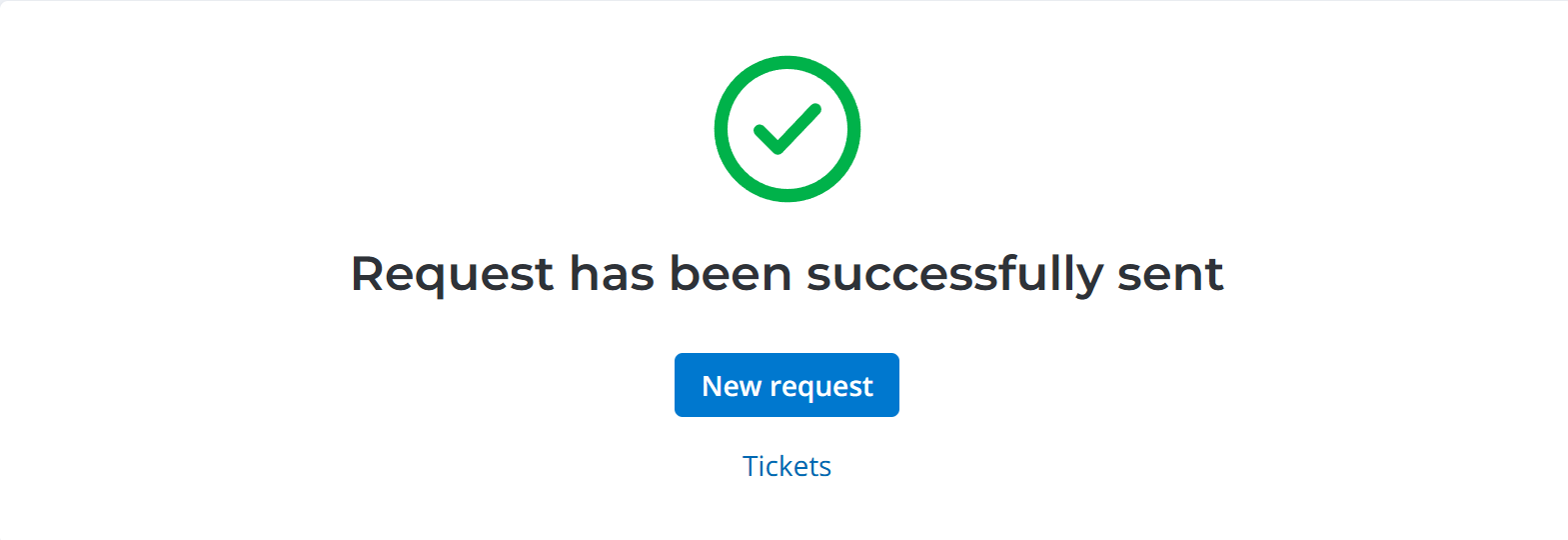
From this page, you can create another request. To do so, click New request.
To open your service request list, click Tickets.
Request employment contract amendment for a subordinate form fields
| Field | Mandatory | Description |
|---|---|---|
| Employee | Y | Specify the employee whose employment contract is to be amended. You can specify only your direct or indirect subordinate. |
| Company | N | The company where the employee works. The field is completed automatically if an employment contract is specified, and is read-only. |
| Employment contract | Y | Specify the employee's contract. The field is completed automatically if there is only one active employment contract related to the specified employee. |
| Current effective date | N | The effective date of the current employment contract. The field is read-only. Its value is determined by the value of the Employment contract field. |
| Current position | N | The employee's position. The field is read-only. Its value is determined by the value of the Employment contract field. |
| Current position slot | N | The employee's current position slot. The field is read-only. Its value is determined by the value of the Employment contract field. |
| Current immediate unit | N | The employee's current immediate unit. The field is read-only. Its value is determined by the value of the Employment contract field. |
| Current manager | N | The employee's current direct manager. The field is read-only. Its value is determined by the value of the Employee field. |
| Current salary | N | The employee's current salary. The field is read-only. Its value is determined by the value of the Employment contract field. |
| Current base pay | N | The employee's current fixed part of the salary. The field is read-only. Its value is determined by the value of the Employment contract field. |
| Current variable pay | N | The employee's current variable part of the salary. The field is read-only. Its value is determined by the value of the Employment contract field. |
| Current royalty pay | N | The employee's current royalty part of the salary. The field is read-only. Its value is determined by the value of the Employment contract field. |
| Current other payments | N | The employee's current other payments. The field is read-only. Its value is determined by the value of the Employment contract field. |
| Proposed effective date | Y | Specify the proposed effective date. Default value: the first day of the month following the date 14 days from today. See the calculation table below. |
| Proposed position | Y | Specify the position the employee will occupy according to the employment contract. The default value is determined by the value of the Employment contract field. |
| Proposed position slot | Y | Specify the position slot the employee will occupy according to the employment contract. The default value is determined by the value of the Employment contract field. |
| Proposed immediate unit | Y | Specify the proposed immediate unit. The field value is determined by the value of the Employee field. |
| Proposed manager | Y | Specify the proposed direct manager of the employee. The field value is determined by the value of the Employee field. |
| Proposed salary | N | The employee's salary according to the new employment contract. The salary sums up the values of the Proposed base pay, Proposed variable pay, Proposed royalty pay, and Proposed other payments fields. The field is read-only and is automatically completed with the current salary and is updated depending on the related fields. |
| Proposed base pay | Y | Specify the employee's base pay according to the new employment contract. |
| Proposed variable pay | N | Specify the employee's variable pay according to the new employment contract. |
| Proposed royalty pay | N | Specify the employee's royalty pay according to the new employment contract. |
| Proposed other payments | N | Specify the employee's other payments according to the new employment contract. |
| Current employment contract type | N | The employee's current employment contract type. The field value is determined by the value of the Employment contract field. Possible values:
|
| Proposed employment contract type | Y | Specify the type of the new employment contract. Available options:
|
| Current work format | N | The employee's current work format. The field value is determined by the value of the Employment contract field. Possible values:
|
| Current work schedule | N | Specify the employee's current work schedule. |
| Proposed work format | N | Specify the employee's work format according to the new employment contract. Available options:
|
| Proposed work schedule | Y | Specify the employee's work schedule according to the new employment contract. The field value is determined by the value of the Employment contract field. |
Proposed effective date calculation table
The default value is the first day of the month following the date 14 days from today.
Depending on the number of days in the current month and the date of the request, the proposed effective date is calculated as follows:
| Days in month | Request date | Proposed effective date |
|---|---|---|
| 28 | 1–14 | first day of the upcoming month |
| 28 | 15–28 | first day of the month following the upcoming month |
| 29 | 1–15 | first day of the upcoming month |
| 29 | 16–29 | first day of the month following the upcoming month |
| 30 | 1–16 | first day of the upcoming month |
| 30 | 17–30 | first day of the month following the upcoming month |
| 31 | 1–17 | first day of the upcoming month |
| 31 | 18–31 | first day of the month following the upcoming month |
:::
Use the attachment window to upload files related to the record. To add your files, drag and drop them into the attachment window or click Upload from computer and add files via the file manager.
Tickets
You can find the list of all your requests on the Tickets page. Visit the page any time to monitor the state of all your requests. To do so, go to Activities → Tickets in the header of the portal.