Priority Matrix
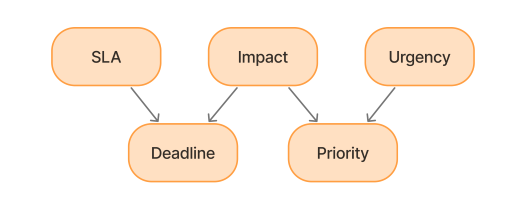
The Priority of an ITSM ticket is the key measure of its criticality. It is determined based on the ticket's Impact and Urgency.
You can configure the possible combinations in the Priority Matrix (itsm_dl_priority) table. The values there are universal, and each client regulates them as needed.
Role required: matrix_manager.
Parameters for priority calculation
Impact
The Impact reflects the situation's potential effect on the business user, service, or configuration item (CI). It can be Low, Medium, High, or Very high.
The impact is determined when the ticket is processed in the agent interface. This can be done manually by the assigned agent or automatically. Automatic impact calculation based on the Impact Matrix is available for non-infrastructure incidents. In this case, the maximum possible Impact is High.
Urgency
The caller specifies the Urgency of their ticket by measuring the time until the issue affects the business. In SimpleOne, the urgency is classified as follows:
- Low
- Medium
- High
- Very high
The caller can change the urgency of the ticket at any moment as long as the ticket state is Registered, Assigned, Authorization, In progress, Information needed, Postponed, or External processing. This can be done as follows:
-
On the Self-Service Portal, navigate to Activities → Tickets.
-
Open the ticket for which you need to change the urgency.
-
In the Ticket urgency widget, click Change.

-
Select the appropriate urgency.
-
Click Save.
The urgency updates are tracked in the Activity Feed.
The caller is also asked to contact the service desk by phone if their question is urgent. The phone number displayed here is specified in the itsm.notification.contact.phone system property.
Priority calculation
Per the Priority Matrix, tickets can have the following Priority:
- Low
- Moderate
- High
- Critical
Priority Matrix
| Impact/Urgency | Low | Medium | High | Very high |
|---|---|---|---|---|
| Low | Low | Low | Moderate | High |
| Medium | Low | Moderate | Moderate | High |
| High | Moderate | Moderate | High | Critical |
| Very high | High | High | Critical | Critical |
Extend the priority matrix
Add impact and urgency options
The ITSM solution has a Priority Matrix with standard settings, but you can customize it based on your business tasks and priorities. To do so, you can add more Impact or Urgency options.
To add a new impact or urgency option, perform the following steps:
- Open the record of any issue that has an Impact or Urgency field.
- Right-click the title of the field you need and select Configure field from the context menu appeared.
- In the Related Lists area, select the Choice tab.
- Click New, fill in the fields.
- Click Save or Save and exit to apply the changes.
See the Choice Fields article to learn how to create choice options.
When filling out the Value field, note that the value must be relevant to the impact or the urgency.
For example, the High option of Impact has a value of 3. If you add a Very high option for Impact that is higher than High, set the value to 4.
And if you add the Medium option for Impact that is lower than High, set the value to 2.
After you have added a choice option for a table, perform the same for the Priority Matrix (itsm_dl_priority) table. The action sequence is the same.
Example of adding a new option
You need to create the Critical option for the Urgency field of the Task table. To do so, perform the following steps:
- Navigate to the Task table.
- Open any record, right-click the Urgency field title and select Configure field option from the context menu that appeared.
- In the Related Lists area, select the Choice tab.
- Click New and fill in the fields.
- Enter Critical in the Title field.
- Enter 5 in the Value field because the value for Very high is 4.
- Click Save or Save and exit to apply the changes.
After you have added Critical choice option for the Urgency field in the Task table, perform the same action for the Priority Matrix (itsm_dl_priority) table. The action sequence is the same.
Add new priority combinations
After adding new choice options, extend the priority matrix. To do so, complete the steps below:
- Navigate to Matrices Configuration → Priority Matrix.
- Click New and fill in the fields.
- Click Save or Save and exit to apply the changes.
Priority Matrix form fields
| Field | Mandatory | Description |
|---|---|---|
| Impact | N | The impact value you plan to use in the new priority value. |
| Urgency | N | The urgency value you plan to use in the new priority value. |
| Priority | N | The priority value that is calculated based on the impact and urgency. |
Repeat these steps until your Priority Matrix covers all the possible combinations of the impact and urgency.
Example of an extended Priority Matrix
| Impact/Urgency | Low | Medium | High | Very high |
|---|---|---|---|---|
| Very low | Low | Low | Low | Moderate |
| Low | Low | Low | Moderate | High |
| Medium | Low | Moderate | High | Critical |
| High | Moderate | High | Critical | Critical |
| Very high | Critical | Critical | Critical | Critical |
You can configure the automatic change of task priority based on the current impact and urgency fields values. To do so, add client script for the Task (task) table. That script should process the changes in the values of these metrics and select the appropriate value from the Priority Matrix (itsm_dl_priority) table.
Priority and deadline
A ticket's priority is not supposed to determine the deadline for its completion.
This is because a ticket's priority depends on its urgency, which is specified by the caller and can be changed. If the caller increases the ticket's urgency, this will also increase its priority. If the deadline depends on the ticket's priority, this will decrease the commitment time of the SLA, which will cause the SLA to be breached sooner.
It is good practice to use impact as the service level objective. Because impact is not likely to change, it is recommended to use it to determine the deadline for ticket completion, as shown below. This helps establish clear rules for the order in which to complete tickets, as well as decrease the possibility of the SLA being breached.