Create Records Related to Service Requests
Create a service request task
If solving a service request requires the participation of different departments, an agent can create a request task for each of them. Dividing requests into tasks has several benefits, such as the ability to assign different request tasks to different employees and to get tasks done simultaneously, or one after another. Service requests and request tasks are in the parent-child relationship.
To create a service request task, follow the steps below:
- Navigate to Service Request Management → All Service Requests.
- Open the service request you want to create a request task for.
- In the Related Lists area, select the Tasks tab and click New.
- Fill in the fields.
- Click Save or Save and exit to apply the changes.
You can create as many request tasks as you need. The created tasks are displayed in the Tasks related list on the service request form, where you can process them in bulk, as well as in the Service Request Task (itsm_request_task) table.
Service Request Task form fields
| Field | Mandatory | Description |
|---|---|---|
| Number | Y | This field is populated automatically and has the RQTSKXXXXXXX format. |
| Service request | Y | Specify the request that you need to divide into request tasks. |
| Subject | Y | Add a brief description of the request task. |
| Description | N | Add a detailed description of the request task. |
| Follower list | N | Specify the users to receive notifications, when:
The users will not receive notifications when a user Follows or Unfollows the record on their own using a corresponding UI action on the form. The field is read-only when the record is in the Canceled or Closed state. |
| State | Y | Specify the state of the request task. Available options:
|
| Assignment group | Y | Specify a responsible group to work on the request task. When a request task is assigned to a responsible group, the Assigned user field becomes non-mandatory if the related service request is in the Registered or Assigned state. There is a dependency between the Assigned user and Assignment group fields. Refer to the Auto Assignment article to learn more. |
| Assigned user | Y | Specify a responsible user to work on the request task. When a request task is assigned to a responsible user, the Assignment group field becomes non-mandatory if the related service request is in the Registered or Assigned state. To reassign a user or a group, use the Reassign button at the top right corner of the window, or set a new assigned user, or a group by clicking the magnifier icon next to the Assigned user field. As a result, the request state changes to Assigned. There is a dependency between the Assigned user and Assignment group fields. Refer to the Auto Assignment article to learn more. |
The Follow / Unfollow UI actions are available on the form. If you click Follow, you will be added to the Followers list and start receiving notifications. If you click Unfollow, you will stop receiving notifications about the changes in the record.
Access to the form fields
The read or update access to certain fields of a record can vary depending on the current user's roles.
- The users with the ITSM_agent or request_manager roles, other than the creator of the service request task or the assigned user, can:
- View the record.
- Submit Work notes in all states of the service request task other than Closed.
- Edit the State, Assignment group, and Assigned user field values in all states of the service request task. The Work notes field becomes mandatory in this case.
- Edit the Followers list field value.
- The caller can:
- View the record, except for the Work notes field.
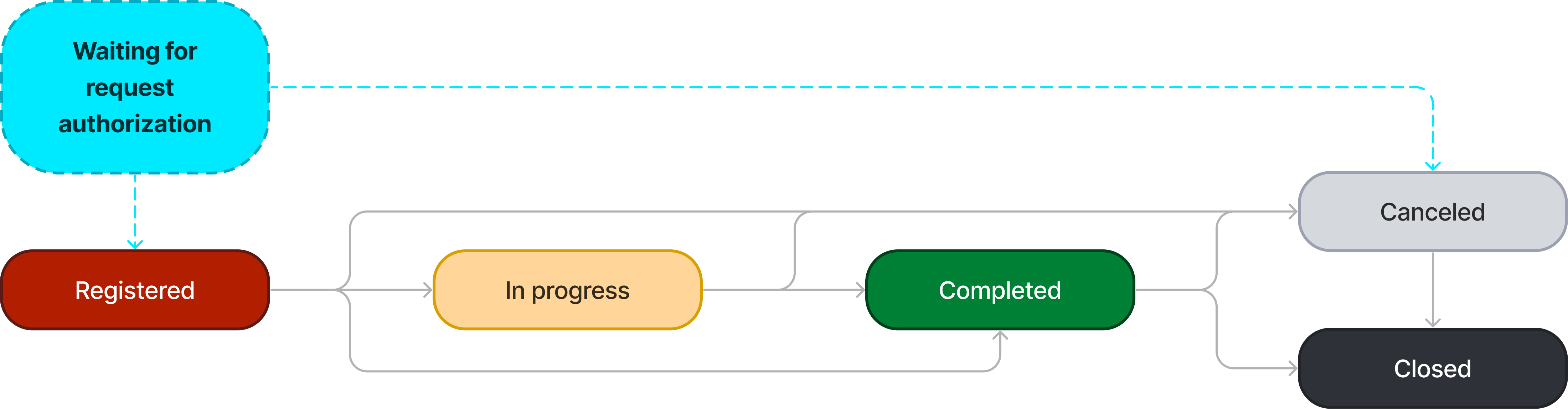
Service Request Task state model
Timepoint indications
An indication is a time counter automatically generated when the indicator start conditions are met. It shows all primary timings, time points, and the current state of the SLA for a particular record (an incident, a request, and other), which allows you to track the level of the service quality target indicators. On the Timepoint Indication tab in the Related Lists area for a service request, you can check the service request indication. For more information, see Indication Management or Service Level Management.
Create relationships
You can create relationships between service requests and other types of tasks. To do so, complete the following steps:
- Navigate to Service Request Management → All Requests and open the service request you want to work on.
- Open the Related Records tab.
- Click the magnifier icon next to the respective field.
- In the window that appears, choose the necessary option.
- Click Save or Save and exit to apply the changes.
Relationship types
| Type | Description |
|---|---|
| Request template | Template that this request is based on. |
| Level of dependency | Specify the level of dependency: Parent or Child. |
| Child request | Select a child request that your request is the parent of. |
| Parent request | Select a parent request that your request is the child for. |
| Solved by changes | Request can be solved by the changes specified. |
| Related user query | Select a user query related to the request. |
| Related incident | Select an incident related to the request. |
| Related request model | Contains a reference to the request model based on which the request is created. The field is read-only. |
Process multiple service request tasks
You can process multiple service request tasks at once by assigning them to a user or a group, completing them, and adding a comment. These actions are available if the service request is in any state except Closed.
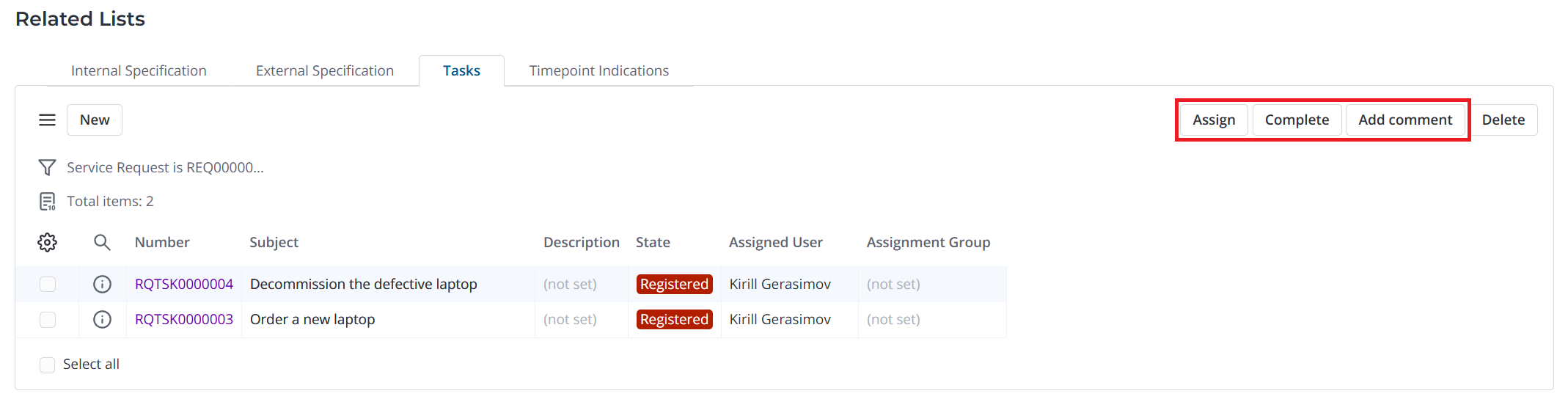
The maximum number of tasks that can be processed at once is specified in the following system properties:
- itsm.mass_processing.max_number_to_assign for assigning tasks;
- itsm.mass_processing.max_number_to_complete for completing tasks;
- itsm.mass_processing.max_number_to_comment for commenting on tasks.
If you attempt to process more tasks than is allowed, an error will be displayed, and the action will not be initiated.
To process multiple service request tasks at once, complete the following steps:
-
Navigate to Service Request Management → All Service Requests and open the service request whose tasks you need to process.
-
Scroll down to the Related Lists area.
-
Open the Tasks tab.
-
Select the checkboxes next to the tasks you need to process.
-
In the upper-right corner of the tab, click the appropriate button: Assign, Complete, or Add comment.
-
In the corresponding modal window that opens, fill in the fields and click the confirmation button.
- When assigning multiple tasks, specify the Assignment group and the Assigned user. If you fill in one of these fields, the other will become non-mandatory. You can also add a Work note by activating the Add comment toggle.
- When completing and commenting on multiple tasks, add a Work note if needed.
As a result, the values you specified in the modal window will be automatically added to the corresponding fields of the selected service request tasks. If you complete multiple tasks, each will move to the Completed state.
When completing multiple tasks at once, if their Assigned user field is empty, it is filled in with the user performing the completion.
If this user belongs to the Assignment group specified in the tasks, this field's value does not change. If this user does not belong to the specified group, the Assignment group field value changes to the Primary group of the user. If the user does not have a Primary group, the Assignment group field is cleared.