Record Audit
History
History storage displays the record field changes in all tables in the human-readable format.
You cannot create, edit, or delete records in the History (sys_history) table. Only users with the admin role can read them.
Navigate to System Logs → History to access system history.
If you need to find specific records or to sort them in a particular order, use the condition builder to configure the filters that best suit your needs.
History form fields
| Field | Description |
|---|---|
| Table Name | Related table name. |
| Field Name | Changed field. |
| Record | The record ID. |
| Old Value | Old record value. |
| New Value | New record value. |
| Type | Change type:
|
| Username | Username of the change originator. |
Use the audit.tables.ignoredList property to specify the tables whose changes will not be saved in history.
Activity Feed History
The Activity Feed of a record displays its history of field changes.
For the Activity Feed to only display the changes to specific fields, complete the following steps:
-
On the Activity Feed, click .
-
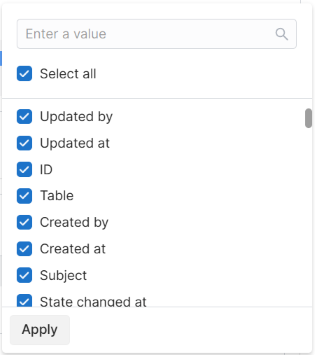
Click Select fields.
-
Clear the checkboxes of the fields whose changes you need to remove from the Activity Feed.
-
Click Apply.
If the history contains the fields that have been changed but are not selected in the Select fields handler, they will be replaced by the No fields selected text.
Record Deletion Log
This log stores the information about deleted objects. You can also restore them with this log.
You cannot create and edit records in the Record Deletion Log (sys_record_deletion_log) table. Only users with the admin role can read and delete them.
Navigate to System Logs → Record Deletion Log to read the storage records.
Deletion logs are only available to tables with the selected Record Deletion Logging checkbox. See the Create Tables article to learn more.
If you need to find specific records or to sort them in a particular order, use the condition builder to configure the filters that best suit your needs.
| Field | Description |
|---|---|
| JSON | This field stores the attributes of the deleted record in JSON format as an associative massive. |
| Parent record ID | The ID of the deleted record that caused the current record to be deleted: if record A causes record B to be deleted, this causes deletion of record C, then record C will display the ID of record A ID (as the original cause). This field is populated in case the On delete attribute of the reference column is Cascade. See the Reference Fields article to learn more. |
| Record ID | The ID of the deleted record. |
| Table name | The name of the table to which the deleted record belongs. |
| Username | The user who initiated the record deletion. |
{"sys_id": 162212096614481484, "title": "Smith", "sys_created_at": "2021-05-27 13:09:26", "sys_created_by": 155931135900000001, "sys_updated_at": "2021-05-27 13:09:26", "sys_updated_by": 155931135900000001}
Restore a record
To restore a record, perform the steps below:
- Navigate to System Logs → Record Deletion Log.
- Find the record you need using the list search or the condition builder:
- select one or several records by checking the box on the left
- open the record you need
- Click Restore.
The restored record will have the attributes described in the JSON field. The system restores the record version as it was before the deletion.
Records are restored independently of each other. For example, if deleting record A causes records B and C to be deleted, and then record A is restored, records B and C remain deleted. They should be restored additionally.