Create Tickets
The Self-Service Portal (SSP) offers different ways of interacting with the system. In case you have the ITSM business solution installed, in addition to the ability to track and process your own tasks, the SSP allows you to contact the IT support. Here you can create tickets: incidents, user queries, and service requests.
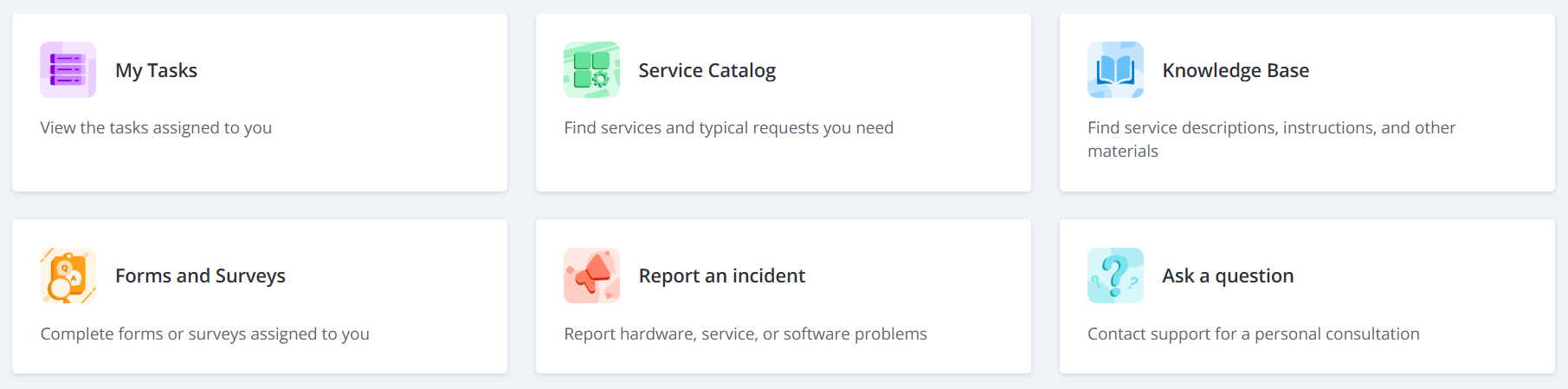
To create a ticket, use the following navigation cards:
- Service Catalog – browse the company Service Catalog to find the services and items that fit your needs, and place an order using the applicable Service Request form.
- Ask a question – submit a user query that cannot be definitely classified as an incident or service request.
- Report an incident – report hardware, service, or software problems.
Create an incident
An incident is an unplanned interruption of a service or reduction in its quality. To report an incident, complete the following steps:
- Click the Report an incident card.
- Fill in the fields.
- Click Save to submit the incident.
Incident form fields
| Field | Mandatory | Description |
|---|---|---|
| Urgency | Y | Specify the urgency of the request. Typically, it is evaluated based on the time remaining until the incident impacts the business. Available options:
|
| Subject | Y | Add a brief description of the incident. |
| Description | N | Add a detailed description of the incident. |
| Steps to reproduce | N | Specify the steps to reproduce the incident. |
If your question is urgent, you can call the service desk at the specified phone number.
You can also attach some files by using the attachment window. To add files, drag them to the attachment window, or click Upload from your device and select them on your device.
Create a service request
To create a service request, perform the following steps:
- Click the Service Catalog card.
- Proceed to the service you need by selecting the required card.
- Fill in the fields.
- Click Save to submit the request.
The set of fields on the service request form depends on the company configuration.
Create a user query
A user query is a general query to the service desk. Create a user query if you need information or consultation, or if you are not sure if your issue is an incident or a service request. To do so, complete the following steps:
- Click the Ask a question card.
- Fill in the fields.
- Click Save to submit the user query.
User query form fields
| Field | Mandatory | Description |
|---|---|---|
| Urgency | Y | Specify the urgency of the request. Typically, it is evaluated based on the time remaining until the issue impacts the business. Available options:
|
| Subject | Y | Type in a brief description of your question. |
| Description | N | Add a detailed description of your question. |
If your question is urgent, you can call the service desk at the specified phone number.
You can also attach some files by using the attachment window. To add files, drag them to the attachment window, or click Upload from your device and select them on your device.
Cancel and resume tickets
If it is configured, callers and their managers can cancel their incidents and service requests, as well as resume them after the cancelation.
Cancel tickets
You can cancel an incident or a service request if the following conditions are met:
- you are the caller or the caller's manager;
- this incident or service request is in any state except Completed or Closed.
To cancel an incident or a service request, complete the following steps:
-
Open the incident or service request. Note that you have to be its caller or the manager of its caller.
-
Click Cancel ticket on the right side of the page.
-
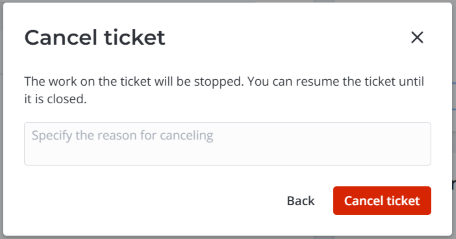
(optional) In the modal window that opens, specify the reason for the cancelation.
-
Click Cancel ticket to apply the changes.
The work on this ticket will be stopped. It will be completed with the Not solved (Canceled by user) closure code.
Resume tickets
You can resume a canceled incident or service request if:
- you are the caller or the caller's manager;
- this incident or service request is in the Completed state with the Not solved (Canceled by user) closure code. The tickets completed with other closure codes cannot be resumed.
To resume a canceled incident or service request, complete the following steps:
-
Open the incident or service request. Note that you have to be its caller or the manager of its caller.
-
Click Resume ticket on the right side of the page.
-
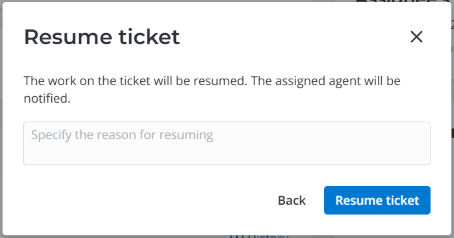
(optional) In the modal window that opens, specify the reason for the resumption.
-
Click Resume ticket to apply the changes.
The work on this canceled ticket will be resumed.