Create Tickets
The Self-Service Portal (SSP) offers different ways of interacting with the system. In case you have the ITSM business solution installed, in addition to the ability to track and process your own tasks, the SSP allows you to contact the IT support. Here you can create tickets: incidents, user queries, and service requests.
To create a ticket, use the following navigation cards:
- Service Catalog – browse the company Service Catalog to find the services and items that fit your needs, and place an order using the applicable Service Request form.
- Ask a question – submit a user query that cannot be definitively classified as an incident or service request.
- If the AI Assistant is configured in your system, this card will be replaced with the AI Assistant card. It opens the Chat with AI Assistant, where you can ask questions and create tickets with the help of AI.
- Report an incident – report hardware, service, or software problems.
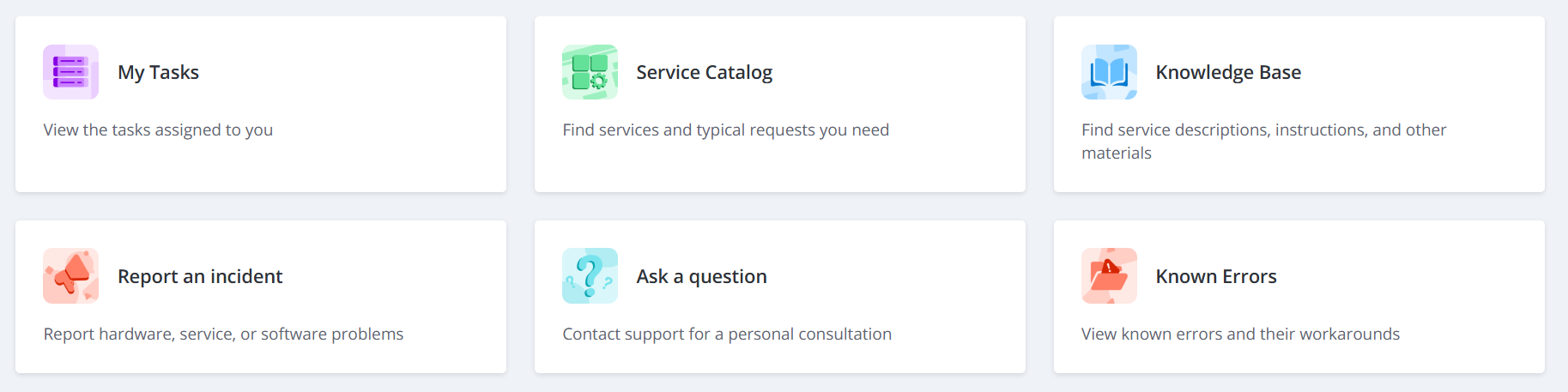
Create an incident
An incident is an unplanned interruption of a service or reduction in its quality. To report an incident, complete the following steps:
- Click the Report an incident card.
- Fill in the form fields.
- Click Save to submit the incident.
You can also find out whether your incident is related to a known error or planned or urgent maintenance, as well as create an incident ticket, in the Chat with AI Assistant if it is configured in your system.
Incident form fields
| Field | Mandatory | Description |
|---|---|---|
| Urgency | Y | Specify the urgency of the request. Typically, it is evaluated based on the time remaining until the incident impacts the business. Available options:
|
| Subject | Y | Add a brief description of the incident. |
| Description | N | Add a detailed description of the incident. |
| Steps to reproduce | N | Specify the steps to reproduce the incident. |
If your question is urgent, you can call the service desk at the specified phone number.
You can also attach some files by using the attachment window. To add files, drag them to the attachment window, or click Upload from your device and select them on your device.
Create a service request
A service request is a ticket used for requesting a service within the scope predefined by the Service Provider. It is processed according to the standardized rules established by the corresponding Service Level Agreement (SLA). Service requests comprise all tickets not related to incidents.
To create a service request, perform the following steps:
- Click the Service Catalog card.
- Proceed to the service you need by selecting the required card.
- Fill in the form fields.
- Click Save to submit the request.
You can also consult the AI Assistant about suitable service requests and create one with its help if it is configured in your system.
The set of fields on the service request form depends on the company configuration.
Create a user query
If you cannot determine which ticket type you need, create a user query to the service desk. A user query is a transitional, temporary entity that the service desk agents process by classifying it as an incident or service request. This incident or service request will then be processed according to the corresponding rules.
To create a user query, complete the following steps:
- On the portal main page, click the Ask a question card.
- If the Chat with AI Assistant is configured, click the AI Assistant card, and then Open query form in the upper-right corner of the page.
- Fill in the user query fields.
- Click Save to send the user query.
You can also create user queries on the known error and announcement pages if you need any additional information or help.
Moreover, you can ask questions in the Chat with AI Assistant and use it to create service desk tickets if it is configured in your system.
User query form fields
| Field | Mandatory | Description |
|---|---|---|
| Urgency | Y | Specify the urgency of the request. Typically, it is evaluated based on the time remaining until the issue impacts the business. Available options:
|
| Subject | Y | Type in a brief description of your question. |
| Description | N | Add a detailed description of your question. |
If your question is urgent, you can call the service desk at the specified phone number.
You can also attach some files by using the attachment window. To add files, drag them to the attachment window, or click Upload from your device and select them on your device.
Cancel and resume tickets
If it is configured, callers and their managers can cancel their incidents and service requests, as well as resume them after the cancellation.
Cancel tickets
You can cancel an incident or a service request if the following conditions are met:
- you are the caller or the caller's manager;
- this incident or service request is in any state except Completed or Closed.
To cancel an incident or a service request, complete the following steps:
-
Open the incident or service request. Note that you have to be its caller or the manager of its caller.
-
Click Cancel ticket on the right side of the page.
-
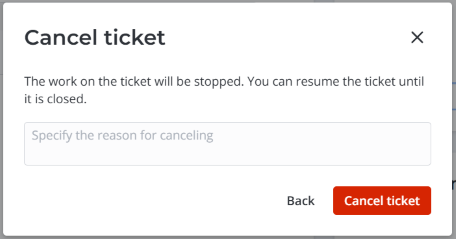
(optional) In the modal window that opens, specify the reason for the cancellation.
-
Click Cancel ticket to apply the changes.
The work on this ticket will be stopped. It will be completed with the Not solved (Canceled by user) closure code.
Resume tickets
You can resume a canceled incident or service request if:
- you are the caller or the caller's manager;
- this incident or service request is in the Completed state with the Not solved (Canceled by user) closure code. The tickets completed with other closure codes cannot be resumed.
To resume a canceled incident or service request, complete the following steps:
-
Open the incident or service request. Note that you have to be its caller or the manager of its caller.
-
Click Resume ticket on the right side of the page.
-
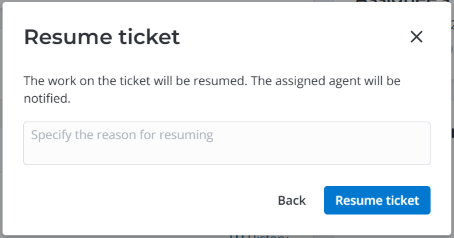
(optional) In the modal window that opens, specify the reason for the resumption.
-
Click Resume ticket to apply the changes.
The work on this canceled ticket will be resumed.