SDLC Task Types
Depending on the complexity of the project, the chosen approach, and workflow specifics, you can use different task types. The levels, form fields and related lists vary between the task types, and the displaying on boards and in the other application widgets may also differ.
Task types hierarchy
The hierarchical principles described in this part of the article are relevant for both "out-of-the-box" and custom task types. The diagram below illustrates the "out-of-the-box" task types hierarchy.
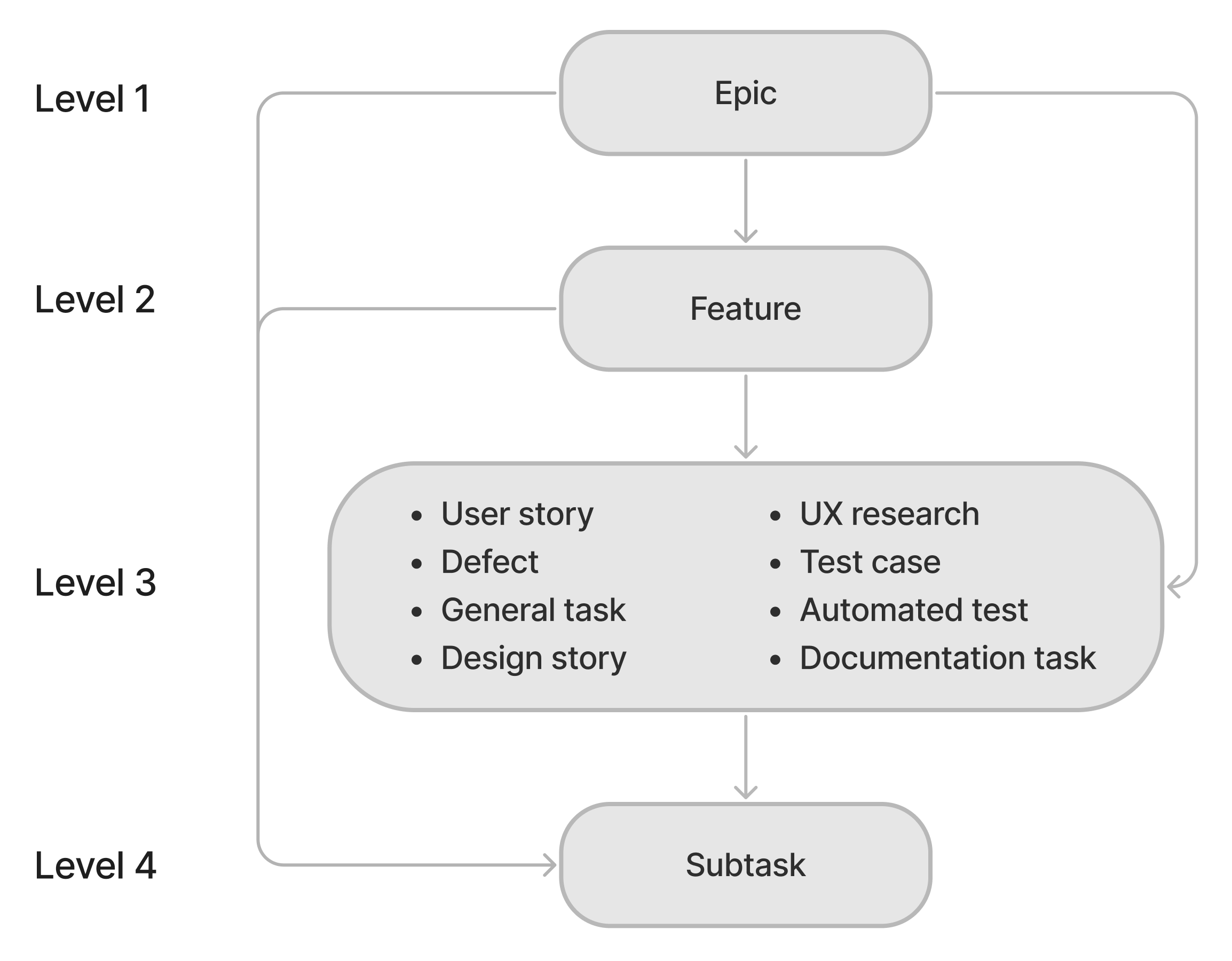
- The first- and second-level tasks are the product level tasks. They are added by a product owner or team leader if the project is dedicated to a product.
- The third-level tasks are the project level tasks. They are implemented by the project team and may be included in the first- and second-level tasks.
- The fourth-level tasks are subtasks used for the decomposition of thehigher level tasks.
"Out-of-the-box" task types
The table below describes the task types included in the "out-of-the-box" SDLC application.
| Level | Task type table | Task type description |
|---|---|---|
| 1 | Epic (pda_epic) | This task type involves substantial amount of work. It includes one or more features and describes business requirements of the solution. |
| 2 | Feature (pda_feature) | This is a considerable amount of work that results in the implementation of a certain product functionality. It includes one or more user stories and describes a business requirement the solution covers. |
| 3 | General task (pda_task) | This is a universal task type that can be divided into subtasks. |
| 3 | User story (pda_user_story) | This task defines requirements from the user's perspective. |
| 3 | Defect (pda_defect) | This is an error that needs to be fixed. |
| 3 | Design story (pda_design_story) | Development of UI design for a product or project with a focus on user experience. |
| 3 | UX research (pda_ux_research) | The process of collecting and analyzing data to understand user needs and behaviors when interacting with a product or service. |
| 3 | Test case (pda_test_case) | A task for developing an algorithm to test product functionality. |
| 3 | Automated test (pda_automated_test) | A task to compose an automated test of the product functionality based on a test case. |
| 3 | Documentation task (pda_documentation_task) | A task to compose or improve product documentation. |
| 4 | Subtask (pda_subtask) | This is a special task type used for the workload decomposition. Subtasks are always subservient to tasks of other types. |
Custom task types
Create custom task types if you need more of them to meet the needs of your company. The task type records are saved in the Task Type (pda_task_type) table. When a custom task type is created, the system automatically creates a table that will contain the tasks of the new type.
Users with the admin, pda_admin, pda_user roles are able to create tasks in the custom task type tables inherited from the SDLC Task (pda_backlog_item) table.
Roles required to work with task types:
- Create, edit, delete (only custom task types) – pda_admin, admin.
- Read – pda_admin, admin, pda_user.
Create a custom task type
To create a custom task type, complete the following steps:
- Navigate to SDLC → General Settings → Task Types.
- Click New and fill in the form fields.
- Click Save or Save and exit.
Task Type form fields
| Field | Mandatory | Description |
|---|---|---|
| Name | Y | Specify the task type name. The value must be unique. The field cannot be edited for "out-of-the-box" task types. |
| Description | N | Add the task type description. |
| Table name | Y | Specify the system name of the table that will contain records of the new task type. The table name should be unique and meaningful. You can use Latin letters, [0..9] numbers, and the underscore ( _ ). System table names are used in scripts. The new table will be inherited from the SDLC Task (pda_backlog_item) table. The table name will correspond to the Name of the task type. By default, the field is completed with the prefix of the application selected in the admin preferences at the moment. We recommend creating tables in the SDLC application to ensure compatibility with all applicttion functionality. The field is hidden from the form after the first saving and cannot be edited. |
| Table | N | The table that contains tasks of this type. The field is dispalyed after the first saving and it contains the table created based on the specified Table name. It is read-only. |
| State model | Y | The field is displayed for task types of the first, second, and third levels after the first saving of the record. It is completed with the state model created automatically for this task type. The available states and state transitions of this model correspond to those of the default state model of the SDLC Task (pda_backlog_item) table. The parameters of state models created for task types:
|
| Record number prefix | N | Specify the prefix for the tasks of this type. The value will be added to the Record number field of the table created for the task type. Default value: TSK. The field is hidden from the form after the first saving and cannot be edited. If no record in the Record Number (sys_number) table corresponds to the specified value, it is created when you save the task type form. |
| Column style color | N | Select a color for the style rule of the Number color for the new table. This color is displayed in the task list and in the description of the task type dispalyed at the project creation. Default value: Grey. The field is hidden from the form after the first saving and cannot be edited. A corresponding record is added to the Column Style Rule(sys_style_rule_column) table. |
| Record number | N | The field is displayed after the first saving and its value is based on the specified Record number prefix if the field was not empty at the saving. |
| Level | Y | The level of the task type that defines the position of the task type in the hierarchy. The value is always 3 for custom task types. The field is read-only. Possible values:
|
| Task icon | N | Add an icon for the task type that will be used on the task board. Default value:  . . |
Related lists
- Projects – the list of projects to which this task type is added.
- An item is not added automatically to the navigator for custom task types. If you need to add a menu item for a new task type, do it manually.
- The form of a custom task type corresponds to the Task (task) table form. If needed, configure the form of a new task type manually.
- No related lists are added to custom task type forms by default. If needed, add them to the form manually.
- If you need to configure or create a state model for the custom task type, use our guide.
Delete a custom task type
To delete a custom task type, complete the following steps:
- Navigate to SDLC → General Settings → Task Types.
- Find the required task type in the list and open its form.
- In the burger menu on the form click Delete.
- If there are projects that use this task type, you will see their number in the modal window that opens. When a task type is deleted, it is deleted from all projects. The tasks of this type remain in the system, but the Task type field is cleared for them. Click Delete to confirm the action.